
Advertisers & Content
Customer profiles, uploads and approvals.
Add the advertiser
Advertisers→+ New advertiser: business name, category, contacts, billing reference and (optionally) the Xero contact ID. The category is what hosts can block (e.g. a café can block other cafés).Upload a creative
Content→+ Upload creative. Images (JPG/PNG/WebP) or video (MP4/MOV/WebM, always played silent). Use 1920×1080 for landscape screens and 1080×1920 for portrait. Upload separate versions for each orientation — each screen automatically gets the one that fits.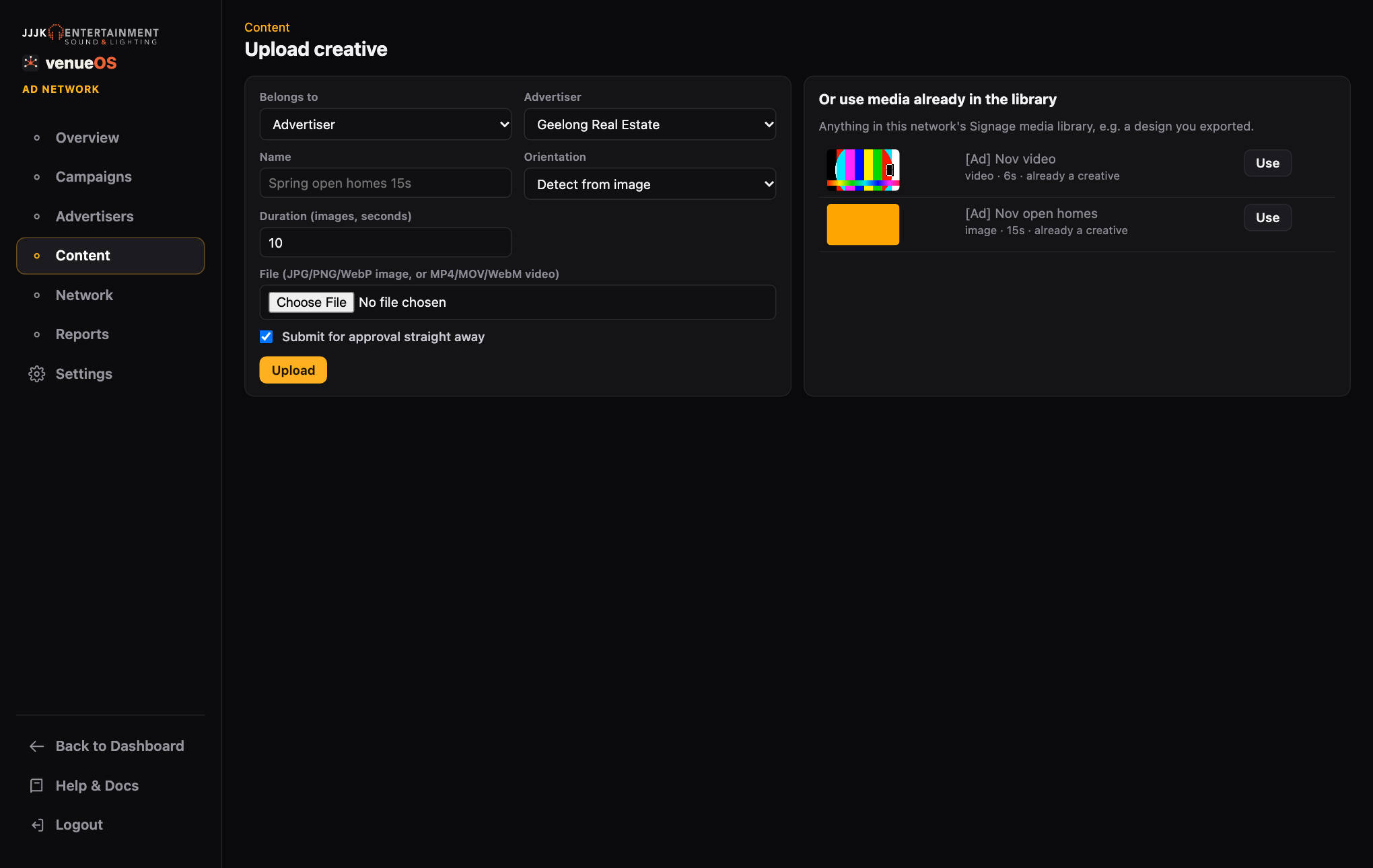
Uploading a creative for an advertiser. Approval
Creatives go Draft → Waiting for approval → Approved (or Rejected, with a reason). Only administrators can approve. Only approved creatives ever play. An approved creative is on air while a live campaign uses it.
Switch off now
On any creative,
Switch off nowtakes it off every screen within seconds, whatever its approval state.Switch back onreverses it.